
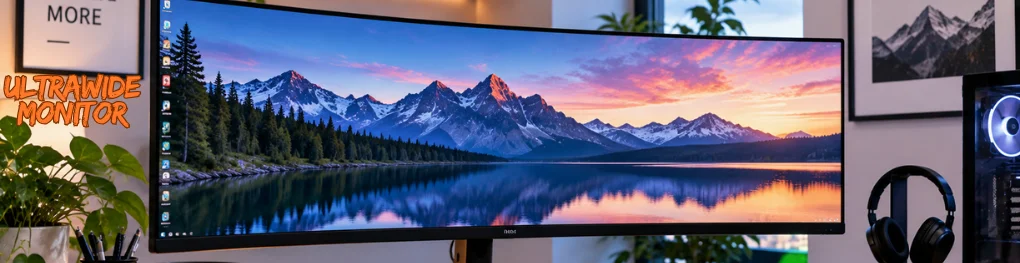
An ultrawide monitor can give you more usable horizontal space without putting a bezel between your apps, games, or editing timelines. For most US buyers, a 34-inch 3440 × 1440 model is the safest starting point because it balances desk space, image sharpness, performance demands, and price. Larger 40-inch and 49-inch displays make sense when productivity, simulation games, or a dual-monitor replacement matters more than compact size.
| Ultrawide Monitor Buying Factor | Practical starting point |
|---|---|
| Best all-around size | 34 inches |
| Common all-around resolution | 3440 × 1440 |
| Standard ultrawide aspect ratio | 21:9 |
| Super-ultrawide aspect ratio | 32:9 |
| Work-focused panel | IPS or IPS Black |
| Gaming-focused panel | OLED/QD-OLED or fast VA |
| Useful gaming refresh rate | 144Hz or higher |
| Laptop-friendly connection | USB-C or Thunderbolt with power delivery |
| Large-screen mounting check | VESA pattern plus arm weight capacity |
Quick answer: A 34-inch 3440 × 1440 display is the strongest starting point for most people. Gamers should prioritize refresh rate, response time, adaptive sync, and GPU capability. Office users should focus more on text clarity, USB-C or Thunderbolt connectivity, window management, stand comfort, and enough desk depth for comfortable viewing.
Key Takeaways
- Choose 34-inch 3440 × 1440 if you want the safest balance for mixed work and gaming.
- Consider 40-inch 5120 × 2160 if text sharpness, vertical space, and productivity are priorities.
- Choose 49-inch 5120 × 1440 when you specifically want to replace two 27-inch displays.
- OLED and QD-OLED are well-suited to gaming and media, while IPS remains attractive for static office workloads.
- Check your GPU, ports, desk depth, VESA support, and stand footprint before ordering.
Best Ultrawide Picks for US Buyers in 2026
Current recommendations indicate that no single display wins in every use case. Testing publications separate their picks into gaming, budget, productivity, and super-wide categories, which is more useful than ranking everything by a single score. The models below represent distinct buying situations and have specifications confirmed through manufacturer pages or recent US-focused testing.
Prices and stock can change quickly in the United States, so specifications matter more than a temporary sale. Think of these models as reference points for what to look for in each category, rather than as products you must buy. A competing model with similar panel technology, resolution, ports, warranty, and refresh rate can be equally sensible.
| Model | Best for | Key specifications | Pros | Cons |
|---|---|---|---|---|
| Alienware AW3425DWM | Budget-conscious PC gaming | 34″, 3440 × 1440, VA, 180Hz, 1500R | High refresh rate, strong contrast, common 34-inch format | No USB-C video input; VA motion behavior may not suit everyone. |
| Alienware AW3425DW | Premium mixed gaming | 34.2″, 3440 × 1440, QD-OLED, 240 Hz | Fast OLED response, 240Hz refresh, adaptive sync | OLED requires more care with static desktop content. |
| ASUS ROG Swift OLED PG34WCDN | High-refresh PC gaming | 34″, 3440 × 1440, QD-OLED, 360 Hz | Extremely high refresh rate, USB-C, KVM support | Expensive for users who cannot drive very high frame rates |
| Dell UltraSharp U4025QW | Productivity and professional work | 39.7″, 5120 × 2160, IPS Black, 120 Hz, Thunderbolt 4 | Sharp 140 PPI image, extensive ports, up to 140W Thunderbolt power | Large footprint and premium cost |
| MSI MPG 491CQP QD-OLED | 32:9 gaming and multitasking | 49″, 5120 × 1440, QD-OLED, 144 Hz | Huge workspace, KVM, 90W USB-C, OLED contrast | Requires a wide desk and careful static-content use |
Dell lists the AW3425DWM at 3440 × 1440 and 180 Hz, while its QD-OLED AW3425DW tops out at 240 Hz. ASUS pushes the same 34-inch resolution to 360Hz on the PG34WCDN, aimed at buyers with fast gaming hardware.
For productivity, Dell’s U4025QW combines a 5120 × 2160 IPS Black panel with 120Hz operation and a Thunderbolt 4 connection capable of up to 140W power delivery. At the other extreme, MSI’s 49-inch MPG 491CQP uses a 32:9 QD-OLED panel at 5120 × 1440 and 144 Hz. Those two products show why screen width alone should never determine your purchase.
Which Size and Resolution Should You Buy?
A 34-inch 21:9 display is roughly comparable in height to a conventional 27-inch 16:9 screen, but it offers substantially more width. That makes 3440 × 1440 comfortable for side-by-side windows without making the display feel like a piece of furniture. It is also the size category with one of the broadest ranges of gaming, office, IPS, VA, and OLED choices.
A 49-inch 32:9 model is closer to placing two 27-inch 1440p screens side by side without the center bezels. This format works well for racing simulators, large timelines, trading dashboards, or workflows where several windows must stay visible. Buyers who only need two normal application windows may find the extra width unnecessary.
| Size and resolution | Best fit | Main trade-off |
|---|---|---|
| 29″, 2560 × 1080 | Tight desks and entry-level budgets | Less vertical space and lower pixel density |
| 34″, 3440 × 1440 | General work, gaming, and home offices | More GPU load than standard 1440p |
| 38–40″, 3840 × 1600 or 5120 × 2160 | Productivity and creative work | Higher price and larger footprint |
| 49″, 5120 × 1440 | Dual-screen replacement and simulation | Requires considerable desk width |
| 57″, 7680 × 2160 class | Specialized high-end setups | Heavy GPU and space requirements |
How to Choose an Ultrawide Monitor for Work and Gaming
Gaming buyers should start with resolution and the graphics card they already own. Rendering 3440 × 1440 requires more GPU work than standard 2560 × 1440 because each frame contains more pixels, and 5120 × 1440 requires even more. A 240Hz or 360Hz specification has limited value when your PC cannot produce frame rates that benefit from it.
Work-focused buyers should rank features differently. USB-C or Thunderbolt power delivery can turn a laptop setup into a one-cable workstation, while KVM functionality helps when you switch between two computers. Picture-by-picture modes, adjustable stands, clear text rendering, and convenient USB ports can matter more during an eight-hour workday than an extreme refresh-rate number. You might also like What Is A Smartwatch.
Before you buy, check these items.
- Native resolution and aspect ratio
- Refresh rate and adaptive-sync support
- IPS, VA, OLED, or QD-OLED panel type
- DisplayPort and HDMI versions
- USB-C or Thunderbolt video support
- Laptop charging wattage
- Built-in KVM or picture-by-picture support
- VESA mounting pattern
- Weight without the original stand
- Desk width and depth
If you intend to use an arm, Technolf’s VESA mount guide explains how to verify the hole pattern, display weight, screw requirements, and mounting clearance. Those checks become especially important as screens get wider and heavier. A mount that matches the hole pattern can still be unsuitable if its weight rating is too low.
OLED vs. IPS vs. VA
OLED and QD-OLED panels are compelling for gaming because their pixels can respond extremely quickly and produce deep blacks. Current 34-inch gaming models reach 240Hz and 360Hz, while manufacturers now include panel-care features and multi-year burn-in coverage on selected products. Static desktop elements still make usage habits and warranty terms worth checking before you buy.
IPS remains a strong choice when office work, text, color consistency, and long periods of static content dominate your day. VA panels often offer strong contrast at lower prices, which helps explain their continued popularity in affordable curved gaming displays. Your use case should determine the panel, rather than assuming that the most expensive technology is automatically the right one.
| Panel | Strengths | Watch for |
|---|---|---|
| IPS / IPS Black | Text clarity, viewing angles, office use, color work | Lower native contrast than OLED |
| VA | Good contrast and competitive pricing | Motion performance varies by model. |
| OLED / QD-OLED | Deep blacks, rapid response, excellent gaming visuals | Static-content care and possible text-rendering differences |
Check Your Desk, Laptop, Mount, and Connections
Wide displays can create setup problems that are easy to miss when shopping from specification sheets. Measure the available width and depth of your desk, then account for the original stand and the panel itself. Sitting too close to a 49-inch screen can leave you turning your head repeatedly to reach content near the edges.
Laptop users should verify that their computer can output the display’s native resolution and refresh rate through the intended port. Technolf’s best laptops guide can help if the wider display is part of a larger computer upgrade, while the site’s small-office technology guide discusses workstation hardware and peripherals. That planning matters because the screen is only one part of the setup.
A large desk can also take up more desk space than expected, making an arm stand attractive for home offices. Before replacing the stand, check the display’s VESA pattern and its weight without the base. Technolf’s broader PC Builders coverage is another useful starting point when the purchase is part of a complete desktop upgrade.
Who Should Skip an Ultrawide Display?
Competitive esports players may prefer a smaller 16:9 screen because it keeps the entire image within a tighter field of view and can make very high refresh rates easier to drive. Console users also need to check compatibility carefully, as console output and individual games may not fully support 21:9 or 32:9 formats. RTINGS specifically notes that these wider formats are generally better suited to PC gaming than consoles.
You should also think twice if your desk is shallow, your computer has limited graphics performance, or your work depends on physically separating applications onto independent displays. Dual monitors remain more flexible when each screen needs its own orientation, input source, or placement. A wider single panel is cleaner, but cleaner does not always mean more practical.
Verdict: Start With 34 Inches Unless You Have a Clear Reason Not To
For most US shoppers, 34 inches at 3440 × 1440 is the strongest default recommendation. It is wide enough to enable multitasking and support gaming without occupying the physical space of a 49-inch panel. Recent buying guides from RTINGS, PCWorld, TechRadar, and other display specialists continue to feature the 34-inch class heavily for this reason.
Move to 40 inches when productivity, sharper text, and extra vertical resolution justify the expense. Choose 49 inches when you know you want the equivalent of a dual-screen workspace or a highly immersive simulation setup. Before purchasing, measure your desk, check your GPU and ports, confirm mounting support, and compare the features you will use every day.
Frequently Asked Questions
Is an ultrawide monitor worth it?
It is worth considering if you regularly keep multiple windows open, edit long timelines, work with wide spreadsheets, or play games that support wider aspect ratios. A 34-inch model can provide more horizontal space while keeping a single continuous desktop instead of splitting work between two bezels. It is less compelling for small desks, basic browsing, console-first setups, or users who already prefer independent dual displays.
Is 34 inches big enough for an ultrawide screen?
Yes, 34 inches is enough for most mixed-use setups because it provides ample horizontal space without being difficult to position. The common 3440 × 1440 resolution also provides pixel density comparable to a 27-inch 2560 × 1440 display. This combination is why 34-inch models remain common across office and gaming recommendations.
Is 21:9 or 32:9 better?
Choose 21:9 for a manageable upgrade from a standard display for everyday work and gaming. Choose 32:9 when replacing two screens, running simulations, using large timelines, or keeping several applications visible at once is a specific goal. The wider format takes up more space and demands more graphics performance, so it should address a real need rather than be chosen solely because it looks larger.
Is a curved screen necessary?
A curve is not required, but it becomes more useful as panel width increases. By bringing the far edges closer to your viewing position, a curved screen can make a large display easier to scan from a normal seated position. Curve specifications such as 1500R and 1800R describe the radius, with a lower number indicating a tighter curve.
Can one wide display replace two monitors?
It can replace two displays for users who mainly want a continuous area for documents, browser windows, editing timelines, dashboards, or several applications. A 49-inch 5120 × 1440 screen closely matches the working area of two 27-inch 1440p displays arranged side by side. Separate monitors remain better when you need independent positioning, different orientations, or distinct input sources.
What should I check before mounting one?
Check the VESA mounting pattern, the screen’s weight without its stand, the arm’s load rating, screw requirements, and cable clearance. Wider models can place more stress on a monitor arm, so matching the mounting holes alone is not enough. Technolf’s monitor mounting compatibility guide covers the complete process before you choose an arm or bracket. You might also like Ethernet Cord.