
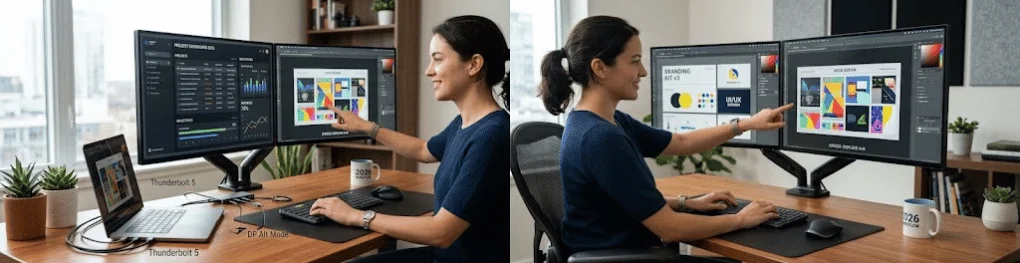
A dual monitor setup gives you more usable screen space without forcing you to constantly minimize, resize, or switch between windows. It’s especially useful for remote work, research, programming, spreadsheets, creative projects, gaming, and any workflow where you regularly need to see two applications at the same time. The hardware is usually straightforward, but choosing the correct ports, cables, display mode, and physical arrangement makes a major difference in how well the setup works.
Most modern Windows PCs and Macs can run more than one display, although the exact number of supported monitors depends on the computer, graphics hardware, connection type, resolution, and refresh rate. A desktop may already have several HDMI or DisplayPort outputs, while a thin laptop may require USB-C, Thunderbolt, or a docking station. Before buying adapters or extra cables, confirm what your computer can actually output.
Quick answer: To build a dual monitor setup, connect each screen to a supported video output on your computer or compatible dock, then choose an extended desktop instead of mirroring. Arrange the displays in your operating system to match their physical positions, then adjust resolution, scaling, refresh rate, and monitor height for comfortable everyday use.
What Do You Need for a Dual Monitor Setup?
You do not necessarily need two identical monitors, although matching models can make alignment, brightness, color, and scaling easier to manage. What matters most is that your computer can generate the required number of independent display signals and that the monitors have compatible inputs. For a typical two-screen workspace, check the computer and both monitors before purchasing anything else.
| Component | What to Check |
|---|---|
| Computer | Number of external displays supported |
| Monitor 1 | HDMI, DisplayPort, USB-C, or other available input |
| Monitor 2 | HDMI, DisplayPort, USB-C, or other available input |
| Cables | Correct connector at both ends and support for your target resolution/refresh rate |
| Laptop users | Whether USB-C supports video output or Thunderbolt |
| Dock or adapter | Support for two independent extended displays |
| Desk or monitor arm | Enough width, depth, and adjustment range for both screens |
If you are upgrading an office rather than a single workstation, Technolf’s guide to must-have tech for your small office provides broader ideas for improving computer hardware and peripherals. A second monitor works best as part of a well-planned workstation, not as an isolated upgrade. Reliable connectivity, comfortable peripherals, and enough desk space all contribute to a better daily setup.
1. Check Whether Your Computer Supports Two Displays
Start by checking your computer’s video outputs. Common options include HDMI, DisplayPort, Mini DisplayPort, USB-C with DisplayPort Alt Mode, and Thunderbolt, but a USB-C-shaped port doesn’t automatically mean it can output video. Laptop specifications or the manufacturer’s support page should tell you both which ports support displays and how many displays the machine can drive.
On a desktop with a dedicated graphics card, the safest approach is generally to connect both monitors to outputs on that graphics card. Plugging one screen into the graphics card and another into the motherboard can create problems on systems where integrated graphics is disabled or unsupported alongside the dedicated GPU. If the graphics card has two suitable outputs, using those outputs keeps the configuration simpler.
Mac owners should pay particular attention to the exact model and chip rather than assuming all recent MacBooks support the same number of screens. Apple states that external-display limits vary by Mac model, display resolution, and refresh rate, and its current MacBook Pro lineup has different limits depending on the chip. Check the Display Support or Video Support specification for your exact Mac before buying a dock or second external monitor.
If the computer itself is becoming the limiting factor, Technolf’s guide to laptops for business and personal use can help when comparing systems for productivity and multitasking. Port selection matters more for a desk-based laptop than many buyers realize because limited connectivity can turn a simple monitor upgrade into a collection of adapters. Checking external-display support before purchasing a laptop can save you that problem later.
2. Choose the Right Monitor Connection
HDMI remains one of the easiest choices because it is found on a huge range of PCs, laptops, monitors, and TVs. DisplayPort is also common on desktop PCs and monitors and is particularly useful for higher resolutions, higher refresh rates, and workstation configurations. USB-C and Thunderbolt can make laptop setups cleaner because a compatible cable or dock may carry video, data, and charging through one laptop connection.
| Connection | Best Use | Important Detail |
|---|---|---|
| HDMI | General office and home use | Widely supported |
| DisplayPort | PCs, gaming, high-resolution displays | Common on dedicated graphics cards |
| USB-C | Modern laptops | Port must support video output |
| Thunderbolt | High-end laptops and docking stations | Supports high-bandwidth peripherals and displays |
| VGA/DVI | Older hardware | Best reserved for legacy equipment |
Don’t assume an inexpensive HDMI splitter will create an extended desktop. A basic splitter normally sends the same source image to multiple screens, which is useful for mirroring but not for giving each monitor its own workspace. If your computer has only one video output, look for a compatible USB-C/Thunderbolt dock or multi-display adapter specifically designed to provide independent displays.
3. Connect Both Monitors
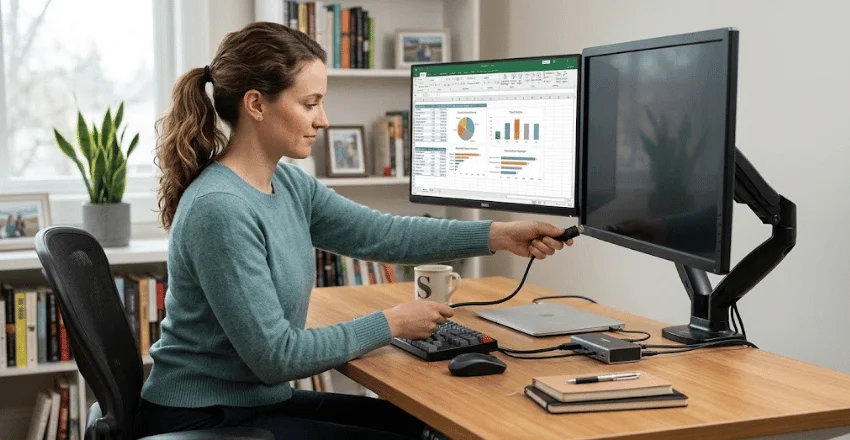
Turn on the monitors and select the correct input on each screen, such as HDMI 1, DisplayPort, or USB-C. Connect one video cable from the computer or dock to the first display and a second supported output to the other display. Windows and macOS will normally recognize connected displays automatically once they receive a valid signal.
For a laptop, you can use the built-in display plus one external monitor for a two-screen workspace, or connect two external monitors if the laptop supports that configuration. A docking station is often the cleanest choice when you also need a keyboard, mouse, Ethernet connection, storage, or power delivery at the desk. Before choosing a dock, verify its resolution and refresh-rate limits, and confirm whether your operating system supports two independent displays through it.
4. Set Up Dual Monitors in Windows 11
After connecting the hardware, open Settings > System > Display in Windows 11. Select Identify to display a number on each monitor, then drag the numbered rectangles in Settings until they match the monitors’ actual left-right and vertical positions on your desk. Microsoft recommends testing the arrangement by moving the pointer between displays after applying the new layout.
For most workstations, choose Extend these displays instead of Duplicate. Extend creates one larger desktop so a browser can remain on one screen while a spreadsheet, document, game, editing program, or communication app occupies the other. You can also press Windows key + P to quickly switch among PC screen only, Duplicate, Extend, and Second screen only.
Windows lets you configure resolution, scaling, orientation, and other properties for each connected display. Microsoft generally recommends using the resolution and scale marked Recommended, although different monitor sizes may require different scaling values to keep text visually consistent. Windows 11 can also remember window positions by monitor connection, which is useful for laptops that are frequently docked and undocked.
Windows 10 users will find many of the same multi-display controls, but Microsoft ended regular free Windows 10 security updates and technical support on October 14, 2025. A new workstation being configured in 2026 should therefore normally use a supported Windows version when the hardware permits. The monitor itself may continue to work with Windows 10, but operating-system support is a separate security and maintenance consideration.
5. Set Up Two Monitors on a Mac
On a Mac, connect the supported displays and open the Apple menu > System Settings > Displays. macOS lets you arrange screen positions, select a main display, adjust resolution and brightness, and choose whether each connected display extends or mirrors the desktop. The options shown can vary depending on the Mac model and the monitor being used.
If a Mac does not recognize an external monitor, Apple recommends checking power, cables, adapters, and whether the Mac supports the number and type of displays connected. In Displays settings, holding the Option key can reveal the Detect Displays control on supported configurations. Apple also recommends checking the exact model’s specifications because a hub or daisy chain does not automatically increase the Mac’s maximum supported display count.
6. Arrange Two Monitors for Better Ergonomics
Getting both screens working is only half of the job because poor placement can turn extra screen space into extra neck movement. OSHA recommends keeping a primary monitor directly in front of the user and placing additional monitors directly beside it; if you use both screens about equally, they should sit next to each other within a comfortable viewing angle. OSHA also recommends positioning the top of the display at or slightly below eye level and keeping the screen at a comfortable viewing distance.
For two equally used monitors, place the inside edges together and center yourself near the point where the screens meet. If one monitor contains your main work most of the day, center that primary display in front of your body and place the secondary monitor immediately beside it. A monitor arm can make this easier by allowing independent adjustments to height, tilt, rotation, and distance.
OSHA gives a general preferred viewing range of roughly 20 to 40 inches and advises placing monitors perpendicular to windows where possible to reduce glare. Your ideal distance will still depend on screen size, resolution, eyesight, and text scaling, so comfort matters more than forcing both screens into an arbitrary measurement. If you continually lean forward to read text, increasing interface scaling or text size is usually better than moving the screens excessively close.
7. Adjust Resolution, Scaling, and Refresh Rate
Set each monitor to a resolution it supports well, normally its native or recommended resolution. If one monitor is 4K and the other is 1080p, you may need different scaling settings so menus, text, and interface elements don’t look dramatically different in size. Matching resolutions is convenient but not required for an extended desktop.
Refresh rate also matters, particularly for gaming and fast-moving content. If you own a high-refresh-rate monitor but Windows is running it at a lower setting, select that display and review its advanced display options. Remember that the monitor, graphics hardware, cable, adapter, dock, and selected resolution must all support the desired refresh rate for the configuration to work properly.
Best Dual Monitor Layouts for Different Uses
There is no single layout that works best for everyone because the secondary screen should support the way you actually work. A writer may keep research or source material on one monitor and the document on the other, while a programmer may dedicate one screen to code and another to documentation, testing, or communication. Gamers and streamers often use the primary monitor for gameplay and the second for chat, streaming software, monitoring tools, or a browser.
A portrait-and-landscape combination can be especially useful for coding, reading long documents, social feeds, or reviewing pages with a lot of vertical content. Two matching landscape screens are usually simpler for spreadsheets, general office work, design applications, and side-by-side browser windows. The best arrangement minimizes repetitive window switching without forcing frequent or uncomfortable head rotation.
How to Fix Common Dual Monitor Problems
Second Monitor Is Not Detected
Start with the physical connection before changing software settings. Make sure the monitor is powered on, select the correct input from its on-screen menu, reseat the cable, and, when possible, test another known-good port or cable. In Windows 11, open Settings > System > Display > Multiple displays > Detect if the screen still does not appear.
If the display works when connected directly but fails through a dock, adapter, or hub, investigate that accessory next. Check whether the dock supports your operating system, the required number of independent displays, and your chosen resolution and refresh rate. Updating Windows and graphics drivers can also resolve detection problems once you’ve ruled out hardware.
Both Monitors Show the Same Image
Mirrored screens usually mean the operating system is set to Duplicate rather than Extend, or the hardware is receiving only one duplicated video signal. On Windows, press Windows key + P and select Extend; on a Mac, open Displays and choose the extended-desktop option for the relevant monitor. If you use an HDMI splitter, replace it with independent computer outputs or a compatible multi-display dock or adapter when you need separate workspaces.
One Monitor Looks Blurry or Too Large
Select the problem display and check its resolution and scaling instead of changing settings for the entire workstation. A non-native resolution may make text and graphics appear soft, while inappropriate scaling can make interface elements look unusually large or small. Windows recommends its marked resolution and scaling choices in most situations, although individual preferences and mixed-resolution monitor setups can justify adjustments.
A Screen Flickers or Loses Signal
Intermittent black screens or flickering can point to a cable, adapter, dock, refresh-rate, graphics-driver, or bandwidth problem. Test a direct connection and a different cable before replacing the monitor, then temporarily reduce the resolution or refresh rate to see whether the connection stabilizes. If an older computer struggles with current hardware or software in several areas, Technolf’s guide to signs it may be time to recycle a business computer covers broader symptoms of aging systems.
Is a Docking Station Worth It for a Dual Monitor Laptop Setup?
A dock is particularly useful when a laptop becomes your primary desktop computer at home or in the office. Instead of reconnecting two monitors, power, storage, networking, a keyboard, and other peripherals individually, a compatible dock can reduce the daily setup to one main laptop connection. It also helps keep the desk cleaner and reduces repeated wear on several laptop ports.
Do not buy a dock based only on the number of HDMI or DisplayPort sockets printed on its case. Check the manufacturer’s supported display configurations, maximum resolution and refresh rates, power-delivery rating, laptop compatibility, and Windows- or macOS-specific limitations. A dock with two physical display connectors is not useful if your computer or operating system cannot drive them as two independent external screens.
Frequently Asked Questions
Can You Connect Two Monitors With One HDMI Port?
You can mirror one HDMI signal to two monitors with a basic splitter, but that usually doesn’t create two independent desktops. For an extended workspace, you generally need multiple independent video outputs or a compatible dock or adapter that can support the required display connections. Check your computer’s external-display specifications before buying the accessory.
Do Two Monitors Have to Be the Same?
No, two displays can have different sizes, brands, resolutions, and refresh rates. Matching monitors simply make physical alignment and visual consistency easier because their dimensions, pixel density, color characteristics, and stands are more likely to be similar. Windows and macOS can configure many display properties separately.
Can a Laptop Run Two External Monitors?
Many laptops can, but support varies by model and should not be assumed from the number of physical ports alone. Some systems support the built-in laptop display plus multiple external monitors, while others impose stricter limits based on the graphics hardware or chip. Verify the laptop manufacturer’s published external-display specifications before purchasing a two-monitor dock.
Should I Use Extend or Duplicate?
Choose Extend when you want additional desktop space and need to move applications independently between screens. Choose Duplicate when both monitors should show the same content, such as when presenting the same material to another person or display. For everyday productivity, an extended desktop is usually the more useful two-monitor configuration.
Is DisplayPort Better Than HDMI for Dual Monitors?
Neither connection is automatically better in every setup because the capabilities depend on the versions implemented by the computer and monitor. Both can support high-quality digital video, but DisplayPort is common on desktop graphics cards and PC monitors, while HDMI is extremely common across laptops, monitors, and TVs. Choose the connection that supports your required resolution and refresh rate without unnecessary adapters.
Build the Setup Around the Way You Work
A good dual monitor setup does more than turn on a second screen. The computer needs enough display support, both monitors need reliable connections, and the software arrangement should match the physical layout on your desk. Once those basics are correct, fine-tuning scaling, refresh rate, window placement, and ergonomics turns two separate screens into one practical workspace.
Before buying cables, docks, or adapters, check your computer’s ports and official external-display specifications. Connect each display, select an extended desktop, and position the monitors according to which one you use most often. This approach avoids unnecessary hardware purchases and gives you a comfortable, reliable, easy-to-use two-screen workspace.