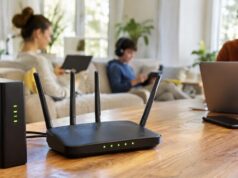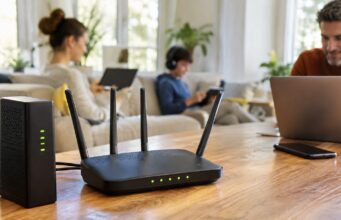


A router IP address identifies your router inside your home or small-office network. You usually need it to open the router’s settings page. From there, you can change Wi-Fi passwords, security options, parental controls, and other settings.
Quick answer: Your router’s local address is normally listed as the Default Gateway, Gateway, or Router on your connected device. Windows users can run ipconfig, while Mac, iPhone, and Android users can check network details. Common addresses include 192.168.1.1, 192.168.0.1, and 10.0.0.1.
| What you need | Where to look | Typical result |
|---|---|---|
| Windows | Command Prompt → ipconfig | Default Gateway |
| macOS | System Settings → Network → Details → TCP/IP | Router |
| iPhone or iPad | Settings → Wi-Fi → connected network | Router |
| Android | Wi-Fi → connected network details | Gateway or Router |
| Common defaults | Browser address bar | 192.168.1.1, 192.168.0.1, 10.0.0.1 |
| Main use | Router admin page | Wi-Fi, security, firmware, device settings |
What Does the Router’s Local IP Mean?
Your router connects devices inside your home with networks outside it. The local gateway identifies that router to connected phones, computers, televisions, and other equipment. Devices send traffic toward this gateway when they need to reach the internet.
This private address differs from the public address assigned by your internet provider. A website can usually see your public internet address. It normally cannot read your private gateway directly through an ordinary browser.
Private network addresses commonly begin with 192.168, 10, or certain 172 ranges. These addresses can be reused across separate home networks. That is why thousands of households can use 192.168.1.1 without conflicting with each other.
How to Find Your Router IP Address on Any Device
The safest method is checking the gateway shown by a device already connected to your network. Guessing common addresses sometimes works, but network settings give you a more dependable answer. Follow the method that matches your device.
1. Find the Gateway on Windows
Press the Windows key and search for Command Prompt. Open it, type ipconfig, and press Enter. Find the active Wi-Fi or Ethernet section and look for Default Gateway.
The number beside that label is normally your local gateway. It might look like 192.168.1.1 or 10.0.0.1. Copy the number carefully before closing the window. Elsewhere on the site: Voicemail Number.
Windows also provides network information through its Settings app. Command Prompt is often quicker when you only need the gateway. It also avoids searching through several network menus.
2. Find the Gateway on a Mac
Open System Settings, then select Network. Choose your active Wi-Fi or Ethernet connection and open its details. Under TCP/IP settings, find the field labeled Router.
That value identifies the gateway your Mac currently uses. You can copy it and enter it into a browser afterward. Make sure the Mac remains connected to the same local network.
Older macOS versions may arrange these menus differently. The TCP/IP section still normally displays the relevant gateway information. Terminal commands can also retrieve it for advanced users.
3. Find the Gateway on iPhone or iPad
Open Settings and tap Wi-Fi. Tap the information icon beside your connected wireless network. Scroll until you see the Router field.
The value shown there belongs to the gateway for that Wi-Fi connection. You do not need a third-party application for this check. Apple devices expose the information inside the network details screen.
Remain connected to Wi-Fi while using the address. Switching to mobile data can prevent the administration page from loading. Your browser needs a path back to the local network.
4. Find the Gateway on Android
Open your phone’s Wi-Fi settings and select the network currently connected. Look for advanced details, network information, or a similar menu. Find a field called Gateway or Router.
Android menu names differ between Samsung, Google Pixel, Motorola, and other manufacturers. Some devices hide gateway details under an advanced section. Router or mesh applications may provide the same information when browser administration is unavailable.
Check the active network instead of a previously saved network. The gateway can change when you move between Wi-Fi networks. Your workplace and home network will probably use different local addresses.
Common Default Gateway Addresses
Many home routers ship with familiar private addresses. 192.168.1.1 and 192.168.0.1 are especially common. Some ISP equipment and home gateways use 10.0.0.1 instead.
Those numbers are useful starting points, but they are not universal. A manufacturer, ISP, installer, or previous owner can change the default. Mesh systems may also use different addresses or require a mobile application.
Your connected device therefore provides better evidence than an online list. If a common number fails, check the actual gateway before troubleshooting anything else. This prevents wasted time on an address your network never uses.
How to Open the Router Login Page
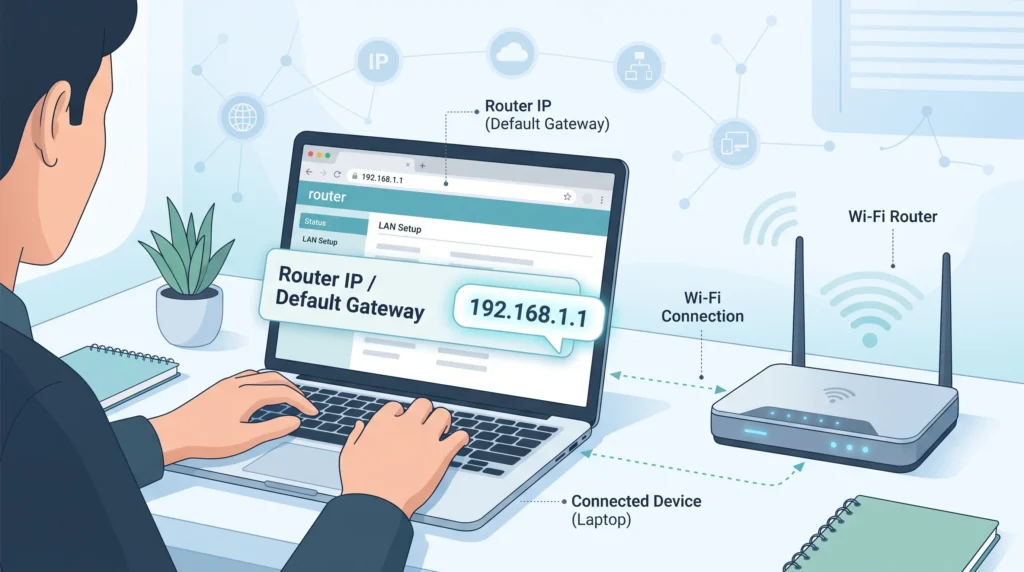
Connect your computer or phone to the router through Wi-Fi or Ethernet. Open a browser and type the gateway number into the address bar. Enter it as an address rather than a search-engine query.
The router should return an administration or login screen. Enter the administrator credentials created during setup. Check the router label, setup documentation, or provider information when you do not know them.
The Wi-Fi password and administrator password are not always identical. One controls access to the wireless network. The other protects configuration settings inside the router.
If you prefer a wired connection while changing settings, Technolf’s Ethernet cord guide explains common cable choices. A wired link can also remove wireless instability during troubleshooting. Keep the cable connected until your configuration changes are complete.
Why the Router Login Page May Not Open
A failed page does not automatically mean the router is broken. The wrong gateway, disconnected Wi-Fi, VPN software, or browser behavior can prevent access. Check simple causes before resetting equipment.
First, confirm that your device is connected to the intended network. Turn off mobile data temporarily when testing from a phone. You can also pause a VPN because it may route traffic away from local devices.
Next, verify the gateway again through your device settings. Do not assume 192.168.1.1 belongs to every router. The number displayed as your current gateway is the better choice.
Try entering http:// before the number if your browser keeps searching instead. Some administration pages use local HTTP connections rather than public websites. Browser security warnings can also appear on older equipment.
If normal browsing is also slow, solve the wider connection issue first. Technolf’s slow-internet troubleshooting guide covers Wi-Fi, Ethernet, router, and ISP checks. That process can reveal whether the problem extends beyond the administration screen.
Router Address vs. Public IP Address
Your local gateway and public internet address solve different networking problems. The local value helps devices communicate with your router. The public value represents your connection to services outside your home.
Suppose your laptop lists 192.168.1.1 as its gateway. A public IP checking service might display a completely different number. Both values can be correct because they describe different parts of the connection.
This distinction matters during troubleshooting. Searching “what is my IP” normally gives the public-facing value, not the local gateway. Entering that public value into your browser usually will not open your home administration page.
What If You Have a Modem, ONT, and Router?
Modern internet setups can include several networking devices. Cable service might use a modem plus a separate wireless router. Fiber service often uses an optical network terminal connected to another gateway or router.
Each piece of equipment can have its own management address. The default gateway displayed by your computer normally points toward the device routing your current connection. That might be an ISP gateway instead of a separately purchased unit.
Technolf’s ONT and fiber hardware guide explains how an optical terminal connects with home networking equipment. Understanding that layout helps when two boxes appear to perform similar jobs. It can also prevent resetting the wrong device.
Some households also have two active routing devices. This arrangement can create a double-NAT setup with separate private networks. In that situation, each device can have a different management address.
What Can You Change After Logging In?
Router settings vary by brand, model, and internet provider. Most home gateways still provide several common configuration areas. Change only settings you understand, and record important values before major edits.
Common options include the following settings.
- Wi-Fi network name and password
- Administrator password
- Guest Wi-Fi access
- Parental controls
- Connected-device lists
- Firmware updates
- DNS settings
- Port forwarding
- Wireless bands and channels
- Security and firewall options
Changing the administrator password is especially useful when the device still uses factory credentials. Use a unique password that is not shared with other accounts. Store it safely because forgetting it can complicate future changes.
Firmware updates can correct bugs and security problems. Follow the manufacturer’s instructions for your exact model. Avoid interrupting power while firmware is being installed.
Safety Tips Before Changing Router Settings
Save your current configuration when the router provides a backup feature. A screenshot can also help before changing unfamiliar options. Small records make it easier to reverse a setting that causes trouble.
Avoid publishing administrator credentials, Wi-Fi passwords, or public network details online. A common private gateway is usually less sensitive because many households reuse it. Credentials deserve much stronger protection.
Do not factory-reset the device as your first troubleshooting step. A reset can remove provider settings, network names, passwords, and custom rules. Try connection checks and normal restarts before erasing the configuration.
Frequently Asked Questions
What is a router IP address?
It is the private network address used to communicate with your home gateway. Your computer may label it as the Default Gateway. Apple devices commonly identify the same value as Router.
The address helps you reach local configuration settings. It differs from the public address websites see. Most users need it when changing Wi-Fi or network settings.
Is 192.168.1.1 always the correct gateway?
No, 192.168.1.1 is common but not universal. Routers can use 192.168.0.1, 10.0.0.1, or another private value. Administrators can also change factory defaults.
Check your connected device when a common address fails. The displayed Default Gateway or Router field is usually more reliable. This approach also works after someone changes the original setting.
Can a website automatically detect my private gateway?
Ordinary web pages generally cannot read all local network configuration directly. Browser security restrictions limit access to information about your private network. That protects users from unwanted local-network probing.
You can still find the gateway through operating-system network settings. The process normally takes less than a minute. No external scanning website is required.
Why does my gateway address work without internet access?
The administration page exists on your local network. Your device only needs a connection to the router to reach it. An active external internet connection is not always required.
This can help during outages. You may still open local settings while the provider connection is offline. Diagnostic information inside the router can then help identify the problem.
Should I change my router’s local address?
Most households have no reason to change it. The default works well unless another network creates a conflict. Advanced setups sometimes require a different subnet or addressing plan.
Changing it can temporarily disconnect devices. You may also need to reconnect using the new gateway afterward. Keep the existing value unless you have a clear networking reason.
Find the Gateway First, Then Troubleshoot
Start with the Default Gateway or Router field on a device already connected to your network. That value is more dependable than guessing common defaults. Once you have it, enter it directly into your browser.
If the page fails, verify the connection before resetting anything. Check Wi-Fi, VPN settings, browser behavior, and the gateway again. These steps solve many access problems without changing your network configuration.
After you reach the administration page, protect the account with a strong password. Review settings carefully and document important changes. A few cautious habits make future network troubleshooting much easier.