
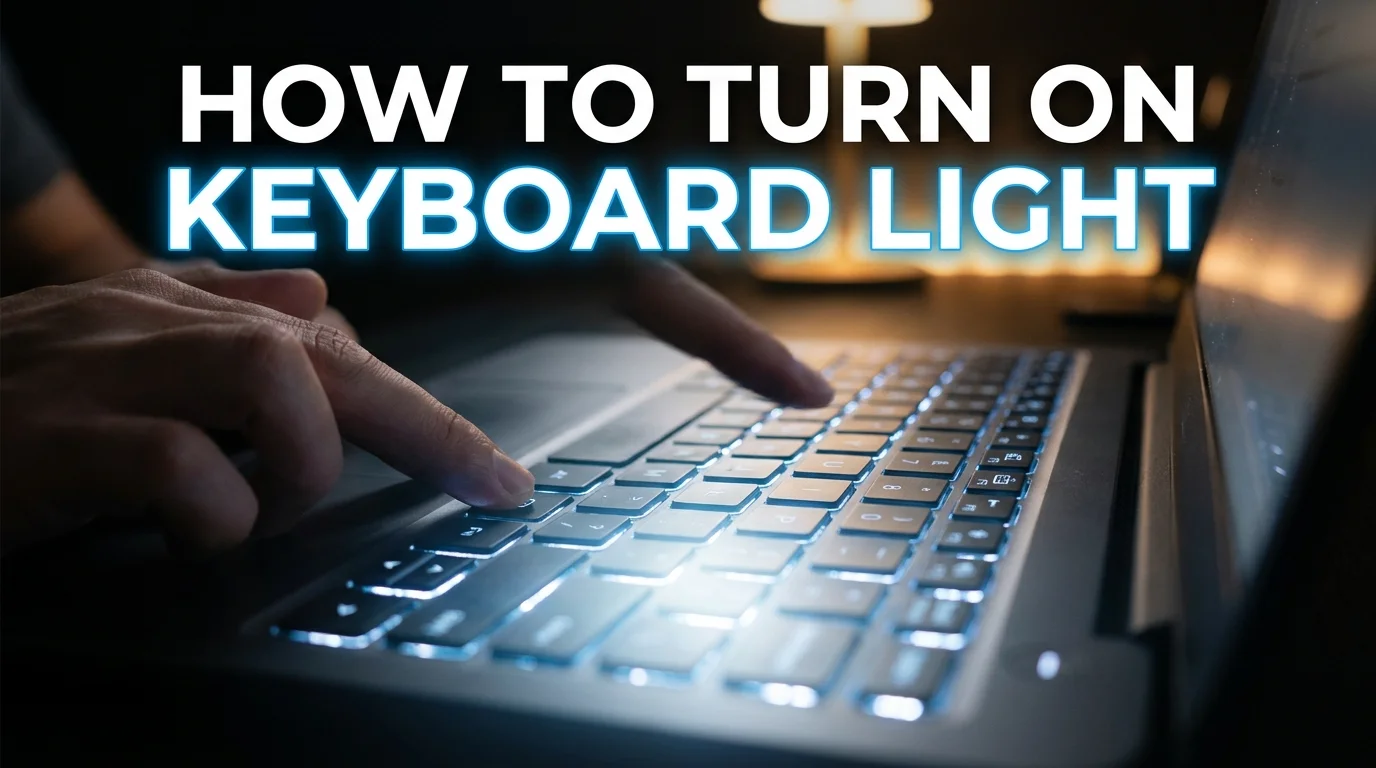
If you’re wondering how to turn on keyboard light, start by checking the top row of your laptop keyboard. Look for a key showing a keyboard with glowing lines or rays. Press that key once, or hold Fn while pressing it, to cycle through available brightness levels.
Most laptops control their backlit keys through hardware shortcuts rather than a universal Windows setting. The exact shortcut depends on the laptop brand and model. Some systems also provide backlight controls in BIOS, Windows 11, or manufacturer software.
Quick answer: Find the key showing a keyboard-backlight symbol, usually among the function keys or near the Space bar. Press it once or hold Fn while pressing it. Repeat the shortcut to increase brightness. If nothing happens, confirm your laptop includes a backlit keyboard before changing software or BIOS settings.
| What to check | What to do |
|---|---|
| Backlight shortcut | Find the key with a glowing-keyboard symbol |
| Fn requirement | Try the key alone, then try Fn + that key |
| Brightness | Press the shortcut repeatedly to cycle levels |
| Hardware support | Check your exact laptop specifications |
| BIOS | Check keyboard illumination settings if supported |
| Windows 11 | Compatible newer systems may expose keyboard backlight controls |
| Gaming laptops | Use the manufacturer’s lighting application when required |
What You’ll Need Before You Start
You only need your laptop and access to its keyboard for the first steps. Knowing the exact model number can also save time. Manufacturers often use different shortcuts across products sold under the same brand.
A backlight is a physical keyboard feature, so not every laptop includes one. Lenovo specifically describes the feature as hardware-based on supported systems. ASUS also recommends checking the user manual when no backlight hotkey appears.
If you are still learning the difference between laptop and desktop hardware, Technolf’s guide to personal computers explains the main components. That background can help when troubleshooting built-in laptop features. It also explains how input devices fit into a computer system.
How to Turn On Keyboard Light in 5 Steps
1. Find the Backlight Symbol
Inspect your F1 through F12 keys first. The symbol usually resembles a small keyboard with light rays above it. Some laptops place the control on the Space bar or arrow keys instead.
Do not confuse the symbol with your screen-brightness controls. Display-brightness keys usually show a sun without a keyboard shape. The location can change between models from the same manufacturer.
2. Press the Backlight Key
Press the marked key once and watch the keyboard. If nothing changes, hold Fn and press the same key. Function-lock settings determine whether Fn is required on many systems.
Press the shortcut more than once if the first press produces a dim light. Many supported laptops cycle between off, low, and high brightness. Dell and Lenovo both document multiple illumination levels on compatible models.
3. Try the Common Shortcut for Your Brand
The exact key depends on your model, so treat brand shortcuts as starting points. Always trust the illuminated-keyboard symbol on your own device first. If your keyboard has no symbol, confirm the specifications before troubleshooting further.
| Laptop brand | Common backlight control | Important note |
|---|---|---|
| HP | F4, F5, or sometimes F11 | Fn may be required |
| Dell | Backlight key, often on an F key | Location varies by product line |
| Lenovo | Fn + Space on many models | Some models have two or three levels |
| ASUS | Fn + F7 on many models | Some use F3/F4 or arrow keys |
| Acer | Backlight media key with or without Fn | Nitro models may use Fn + F9 |
HP says many supported notebooks use F4 or F5, while some place the control elsewhere. ASUS documents Fn + F7 on many notebooks and different shortcuts on gaming models. Acer also advises using the media key or Fn combination, depending on the function-key mode.
These combinations can change after a laptop redesign. A shortcut found for one series may not work on another series. Checking your exact model’s support page remains the safest approach.
4. Check BIOS or Manufacturer Settings
If the shortcut does nothing, restart the laptop and check its firmware settings. Some manufacturers allow keyboard illumination or function-key behavior to be controlled in BIOS. Do not change unrelated BIOS options while looking for the setting.
Dell documents a Keyboard Illumination area on supported systems. HP also directs users toward BIOS settings when its backlight function does not respond. These options only appear where the laptop hardware supports them.
Gaming laptops may use dedicated control software instead. Dell Alienware systems can use Alienware Command Center for lighting profiles. Acer Nitro and Predator systems may expose brightness controls through NitroSense or PredatorSense.
5. Check Windows Controls on Compatible PCs
Most existing Windows laptops still rely primarily on manufacturer hardware controls. Newer compatible Windows 11 devices can support operating-system keyboard-backlight features. Microsoft documents keyboard brightness and automatic brightness capabilities for supported hardware.
On compatible Windows 11 systems, automatic backlight brightness can respond to ambient lighting. Energy Saver can also reduce keyboard brightness on supported devices. These features depend on the laptop manufacturer implementing Microsoft’s newer backlight support.
If Windows itself is behaving unexpectedly, Technolf’s Windows 11 Critical Process Died troubleshooting guide covers broader system diagnosis. That guide is useful for operating-system crashes rather than a simple illumination problem. A working keyboard with dark keys usually requires the steps above instead.
Why the Keyboard Backlight May Not Turn On
The most common reason is simple: the laptop may have been sold without a backlit keyboard. Manufacturers often sell one laptop series with several keyboard configurations. Two machines sharing a product name may therefore have different lighting hardware.
Check your exact model or configuration on the manufacturer’s support website. HP explicitly recommends checking product specifications when no backlight key appears. ASUS gives similar guidance when the keyboard has no lighting hotkey.
Fn Lock can also make a working shortcut appear broken. Try pressing the lighting key alone, then repeat it while holding Fn. Some Dell systems let users change Fn Lock with Fn + Esc.
A firmware setting can cause the same symptom on supported models. Check BIOS only after confirming your keyboard contains backlight hardware. If the option is missing, your laptop’s documentation should have the answer.
What If the Light Turns Off After a Few Seconds?
Automatic shutoff is normal on many laptops because illumination consumes battery power. The backlight can switch off after a period without keyboard or touchpad activity. Pressing a key usually turns it back on.
HP documents timeout controls on selected notebooks, including options that can keep illumination active longer. Dell also provides timeout options in BIOS on some supported systems. Available choices vary by laptop model and firmware version.
Keeping the lighting permanently on can reduce battery runtime. A short timeout usually makes more sense when traveling without a charger. At a desk, a longer setting can be more convenient.
How to Adjust Keyboard Backlight Brightness
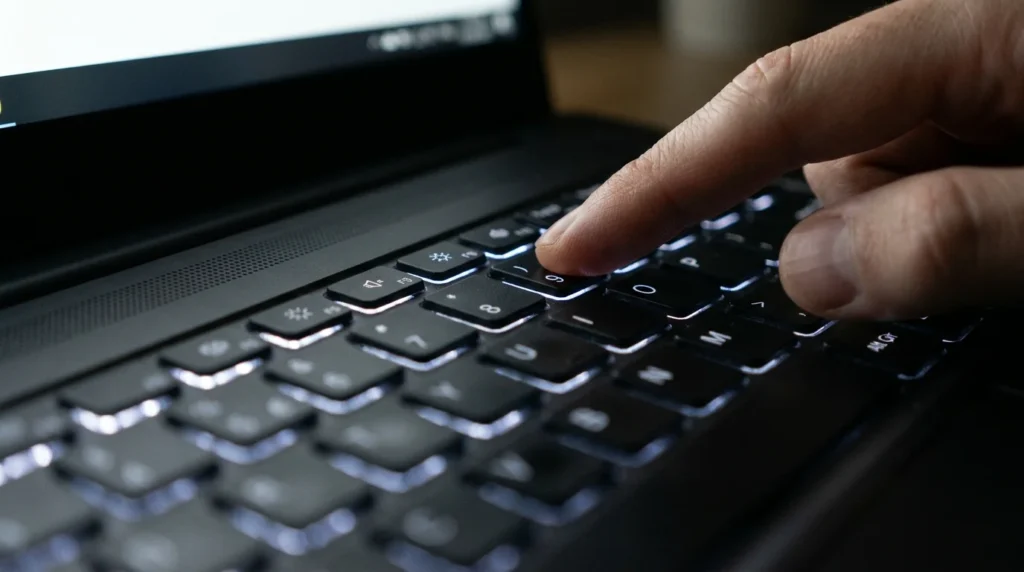
Start by pressing the same shortcut you used to switch the lighting on. Many laptops cycle through several levels with repeated presses. Other models provide separate increase and decrease keys.
For example, Lenovo documents off, low, and high modes on many supported systems. ASUS models may use separate brightness-up and brightness-down shortcuts. HP also says repeated presses can change brightness on selected notebooks.
RGB gaming systems can offer more detailed controls. Their software may provide colors, zones, effects, and brightness sliders. Those options are different from a standard white laptop backlight.
Can You Add a Keyboard Backlight With Software?
Software cannot make ordinary non-backlit laptop keys illuminate. Physical LEDs or another lighting system must already exist beneath or around the keys. Drivers can’t add hardware that was never installed.
External illuminated keyboards are an alternative for a desktop-style setup. They connect through USB, Bluetooth, or another supported interface. Laptop users can also connect one while working at a desk.
An external keyboard can fit well into a larger workstation. Technolf’s dual-monitor setup guide explains how laptops can work with external displays and peripherals. Its setup advice can help you build a more comfortable permanent workspace.
Keyboard Backlight vs. Screen Brightness
Keyboard illumination and display brightness are separate systems. Lowering the screen brightness does not normally brighten your keys. Likewise, changing key illumination does not make the display brighter.
The icons can look similar, which causes confusion. A screen-brightness key commonly shows a sun symbol. A backlight control usually includes a keyboard shape, keys, or light rays around a keyboard.
This distinction can save unnecessary troubleshooting. Check the icon carefully before assuming the feature is not working. Your owner’s manual can confirm the correct symbol for your laptop.
Frequently Asked Questions
How do I turn on the keyboard light without the Fn key?
Try pressing the backlight key by itself. Your laptop may have Function Lock enabled, which changes how the F-row behaves. If that fails, try the same key while holding Fn.
Some systems let you toggle Function Lock using another shortcut. Dell commonly uses Fn + Esc on supported models. The exact behavior still depends on your laptop.
Why doesn’t my laptop keyboard have a light?
Your configuration may not contain backlight hardware. Manufacturers sometimes sell visually similar laptop models with different keyboard options. Check the exact model specifications before assuming something is broken.
A missing backlight symbol is another useful clue. HP and ASUS both recommend checking product documentation when no illumination control appears. Software cannot add the missing LEDs.
Can I leave the keyboard backlight on all the time?
Some laptops provide an Always On or long-timeout option. Others automatically turn the illumination off after inactivity. The available setting depends on the manufacturer and model.
Leaving it enabled can use additional battery power. That difference may matter more when your laptop is unplugged. A shorter timeout is usually practical for mobile use.
Why did my keyboard lighting suddenly stop working?
First check whether the shortcut still changes brightness. Then restart the laptop and check any manufacturer lighting application. A firmware setting, Fn Lock state, timeout, or software profile may have changed.
If the feature worked before and every setting appears correct, check your manufacturer’s support page. Look for current BIOS, firmware, or device-specific troubleshooting information. Avoid installing generic utilities that claim to add backlighting.
Does Windows 11 have a keyboard-backlight setting?
Windows 11 supports newer keyboard-backlight controls on compatible hardware. Microsoft documents brightness, automatic brightness, and Energy Saver behavior for devices implementing its supported backlight protocol. Older laptops may continue using manufacturer shortcuts instead.
So the absence of a Windows setting does not prove your laptop lacks illumination. Check the hardware shortcut and manufacturer documentation first. Those remain the most useful methods across current laptops.
The Bottom Line
Start with the key showing the illuminated-keyboard icon. Try it alone and with Fn, then press it repeatedly to change brightness. If nothing happens, verify that your exact laptop configuration includes backlight hardware.
Only after that should you check BIOS, Windows features, or manufacturer software. Brand-specific documentation matters because keyboard controls differ between models. Once the correct shortcut is identified, turning the lighting on usually takes only a few seconds.